Admin Visual Editor
The Visual Editor lets non-developers compose a UI as a tree of 19 blocks (Page, Stack, Grid, SplitColumn, Tabs, VideoList, Thumbnail, Title, Channel, Views, Likes, Description, Tags, Actions, Comments, and so on). It is the third UI authoring track in WatchLens, alongside the bundled presets and the Admin Code Editor.
The output is a BlockNode JSON tree stored in
ui_templates.{feed,watch}_tree. At render time, BlockTreeRenderer
walks the tree and mounts each block. The same surface primitives
(<FeedSurface>, <WatchSurface>, <VideoSurface>) wrap the tree, so
the standardized event schema fires automatically.
What you can author with it
Each Visual Editor template targets one device class. Six built-in combinations cover the common cases.
Mobile
A single-column list feed and a full-screen watch with no sidebar.
| Feed | Watch |
|---|---|
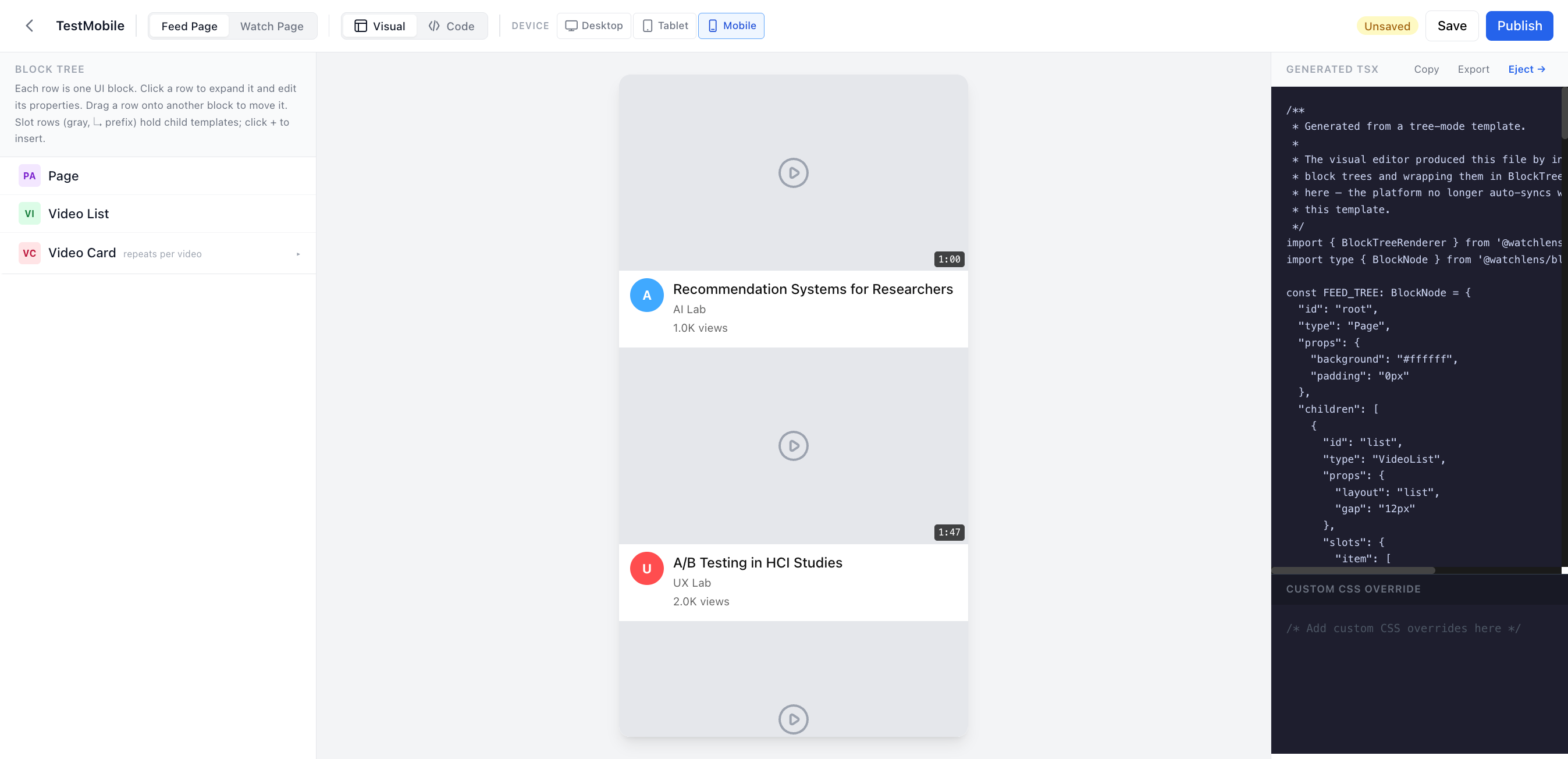 | 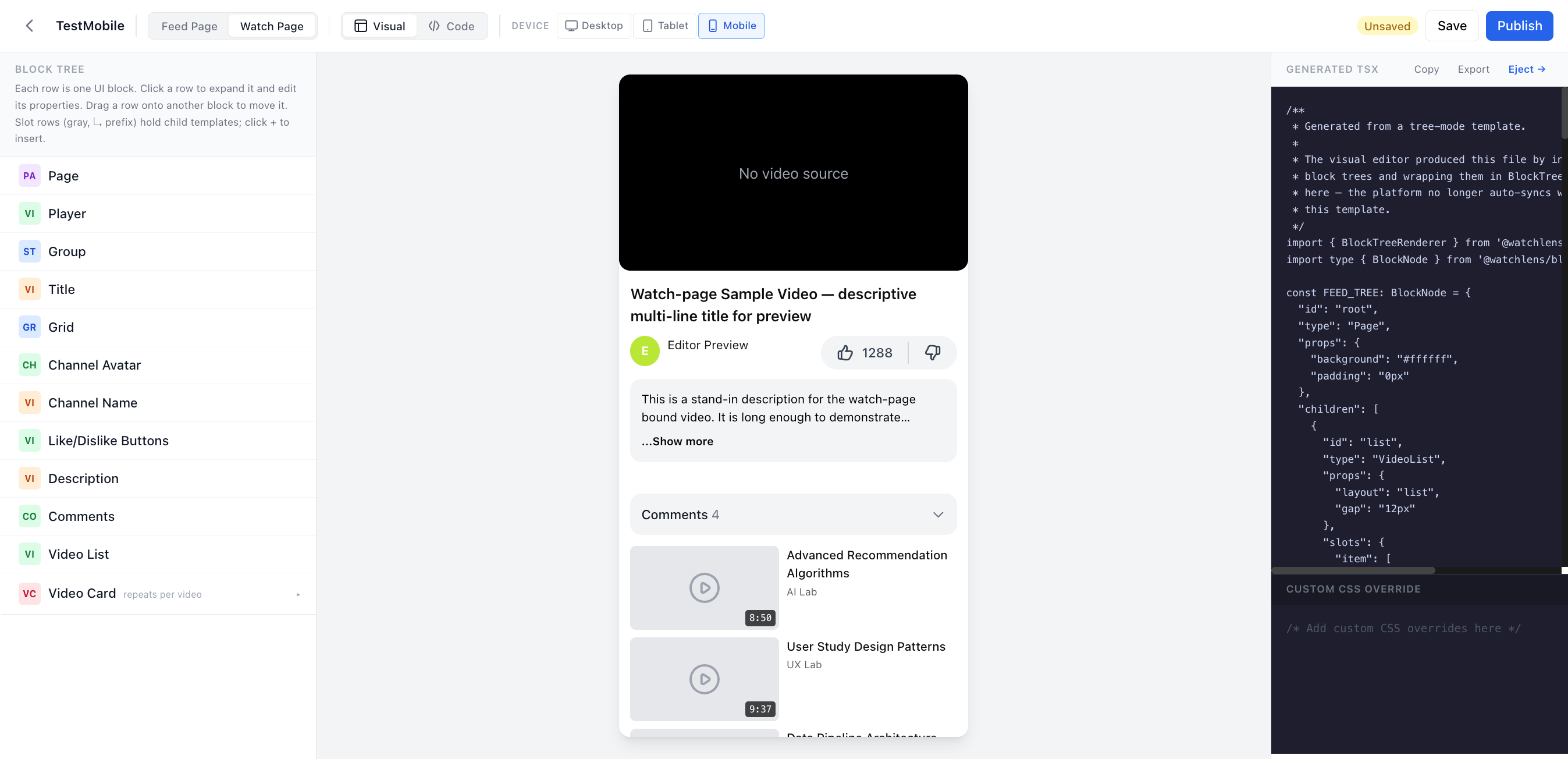 |
Tablet
A two-column grid feed and a tighter sidebar on watch.
| Feed | Watch |
|---|---|
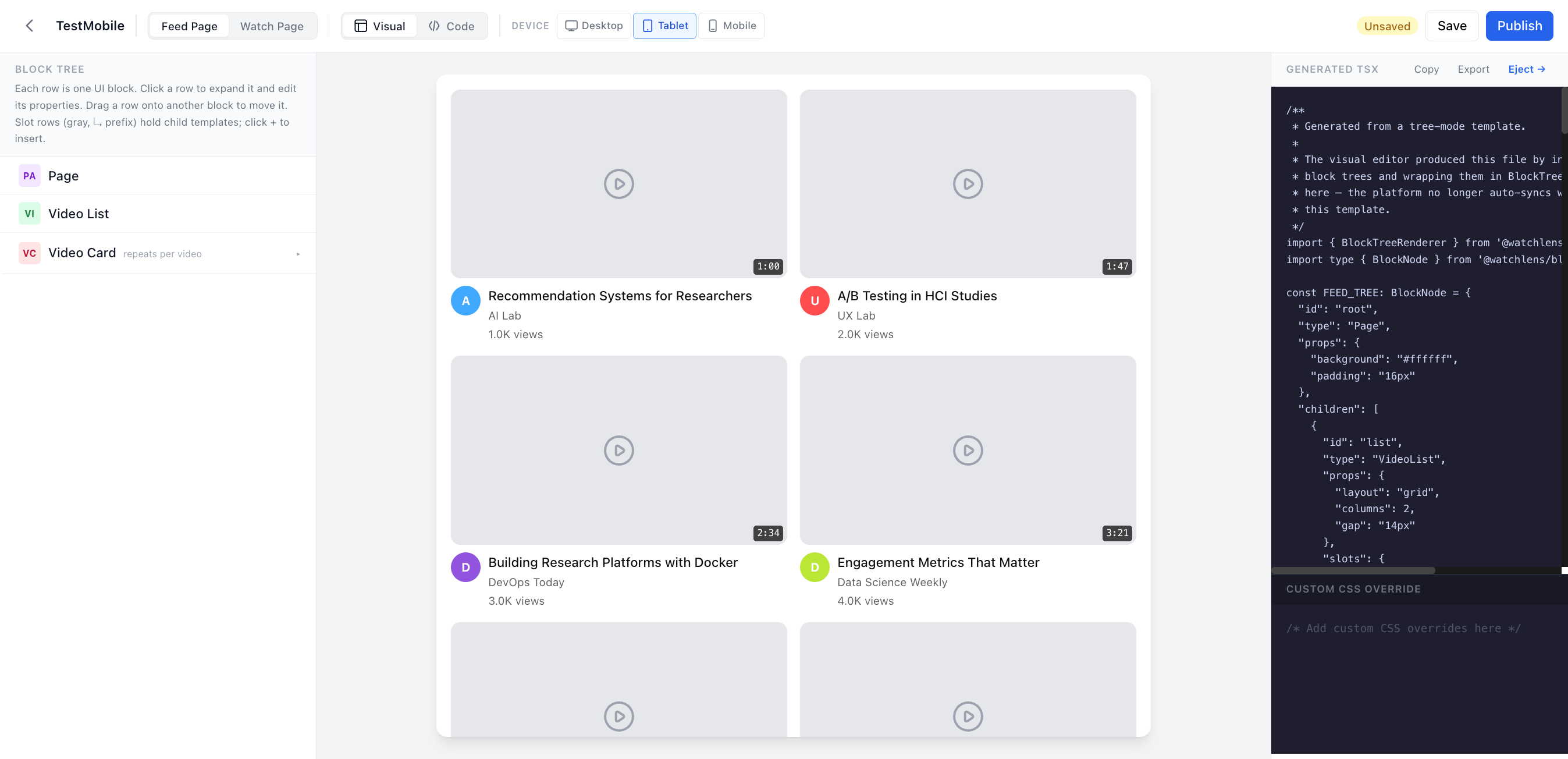 | 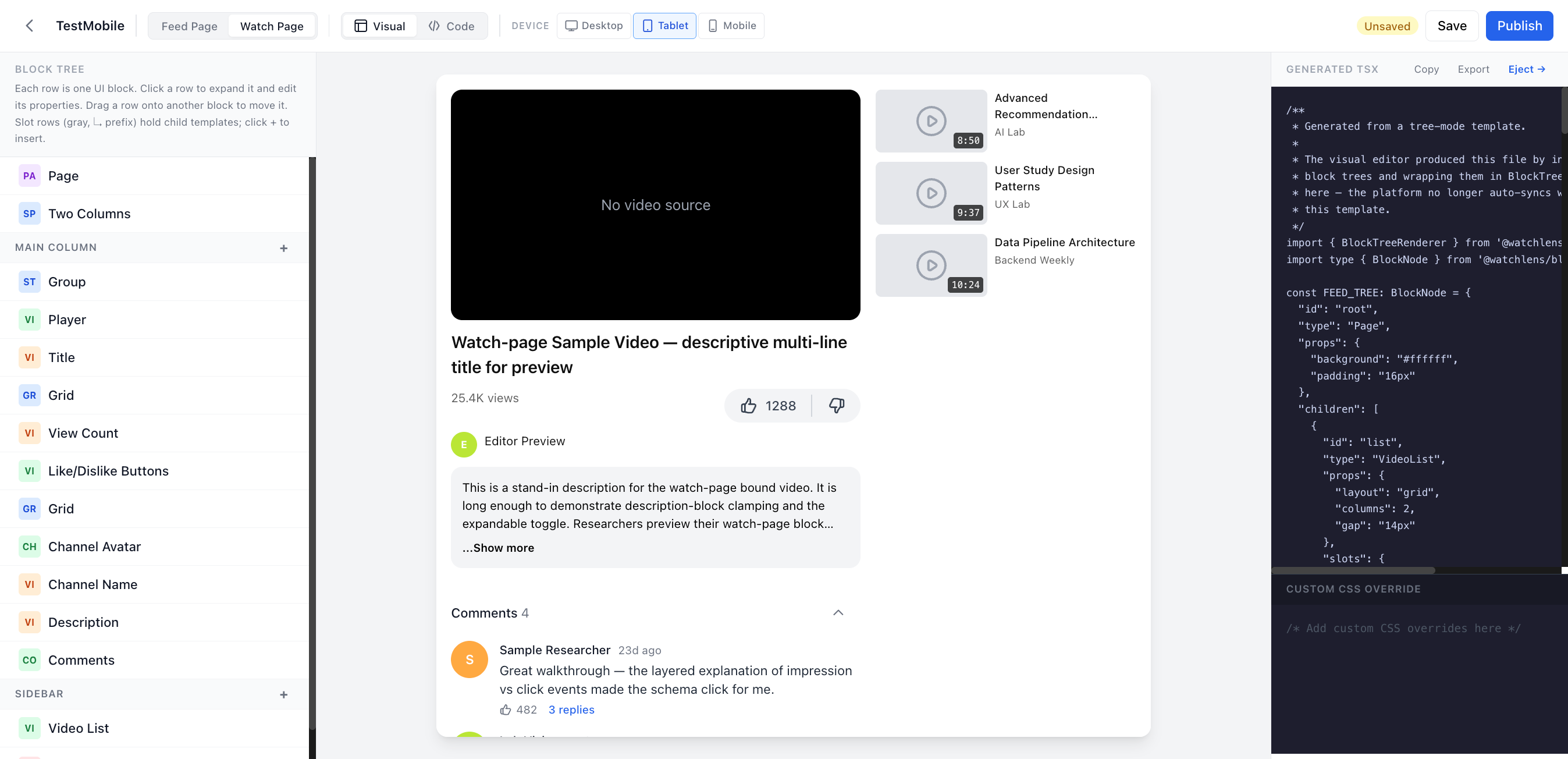 |
Desktop
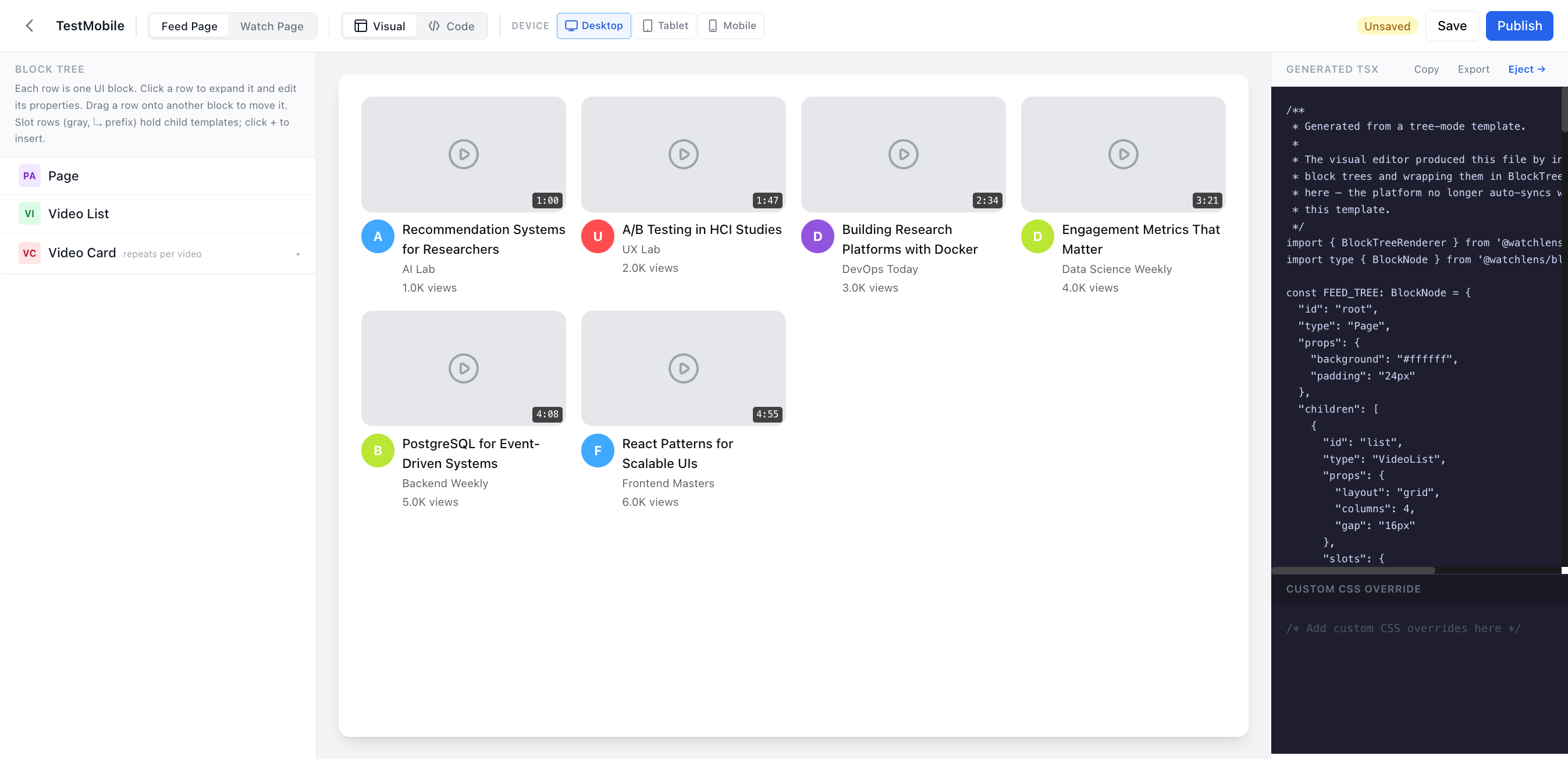
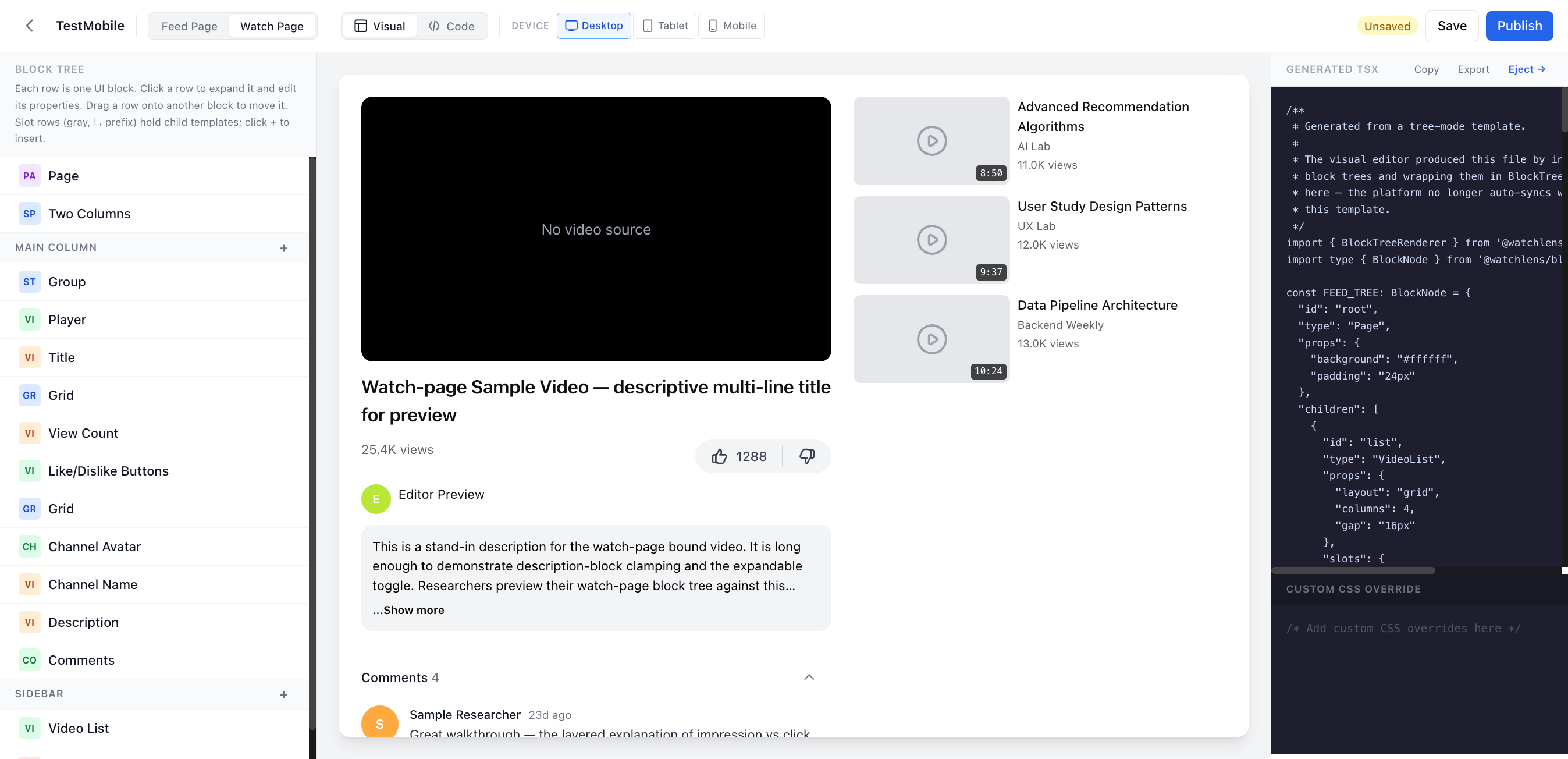
A four-column grid feed and a wide sidebar of related cards on watch.
| Feed | Watch |
|---|---|
 |  |
How the editor is laid out
Three panels run side by side.
- Block tree (left). Each row is one block. Click a row to expand it and edit its props inline. Drag a row onto another to move it. Slot rows (gray, with a downward arrow prefix) hold child templates. Click the plus button on a slot to insert a block.
- Live preview (center).
BlockTreeRendererrenders the same tree against bundled mock videos. The viewport switcher in the top toolbar (desktop, tablet, mobile) drives both the preview width and the template's saveddevicefield. One template targets one device. Switching the device replaces the trees with the matching default and asks before discarding unsaved edits. - Generated TSX + Custom CSS (right). The block tree pretty-prints as standalone TSX. Copy or download the file for reference. The "Eject" button copies the TSX into the Admin Code Editor and switches the template to Code mode. The CSS textarea below it is a scoped style override applied at render time.
Save and Publish
The toolbar at the top of the editor shows the dirty state and two buttons.
- Save. Persists the tree, CSS, and device tag to the database
with
status='draft'. Drafts do not appear in the user group's UI picker. - Publish. Sets
status='published'. The template now appears in the UI Config dropdown for any group whose device matches the template's device.
A group references a published template by UUID in its ui_config
(for example, { feed: '<uuid>', watch: '<uuid>' }). The user-facing
dispatcher resolves the UUID at request time, fetches the template,
and walks its tree.
When to use the Visual Editor
Use it when you want to compose a card layout, a watch page, or a section out of existing blocks without writing TSX. Examples follow.
- Move the Like and Dislike buttons from the bottom of the watch page to the right rail.
- Drop the channel avatar from the feed card to make titles larger.
- Switch the watch page from the bundled YouTube layout to a TikTok- style 9:16 player on mobile only.
If the layout you need cannot be expressed as a tree of the existing 19 blocks (for example, an absolutely positioned overlay, a custom carousel, or a layer that needs JavaScript state), eject to the Admin Code Editor and continue from there.
Where to go next
- Admin Code Editor. Read the in-browser TSX track that the Visual Editor ejects into.
- Block Reference. Read the prop schema for each of the 19 blocks the editor can compose.
- Authoring a UI. Read the overview that compares all three UI authoring tracks.